Description
Running a giveaway can be one of the most effective ways to gain more followers and increase engagement. One of the challenges for running a giveaway is selecting winners. The process can be time consuming, inaccurate and not 100% fair. InsTrack solves all those problems and offer a free solution that saves a lot of time. It offers many insights on the giveaway performance and gives the ultimate control.
Contents
1. Random Winners Selection Steps
5. Giveaway Participants Status
Random Winners Selection Steps
To select winners of a giveaway you're running in your account, simply follow the following 6 steps:
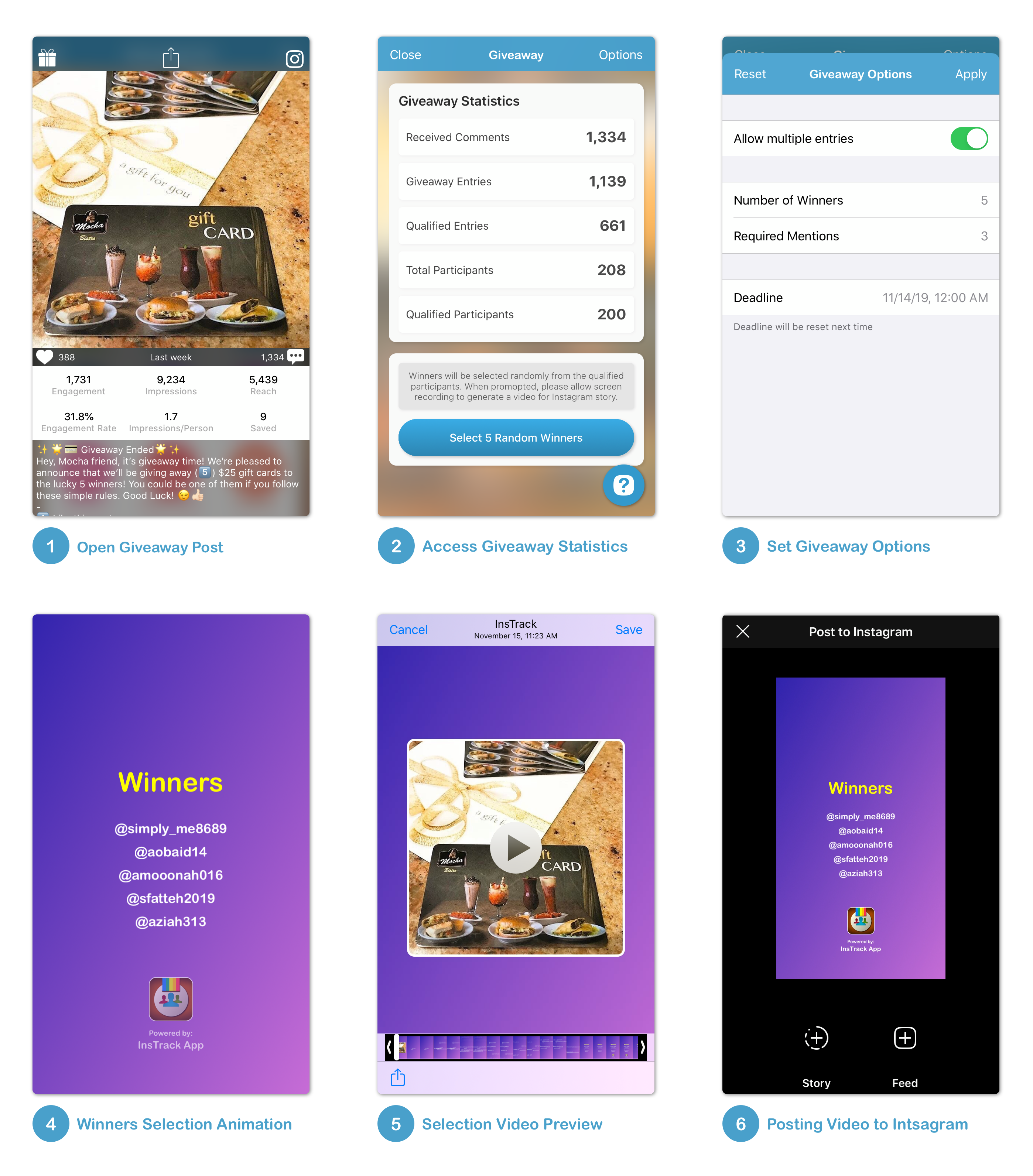
Step 1: Open Giveaway Post
You can access giveaway post from multiple places in the app. Quickest way is from recent posts in dashboard. You can also access post from Media Analysis, Media Ranks and Engagement Analysis section.
Step 2: Access Giveaway Statistics
Tap on the giveaway icon on the top left the post screen to access Giveaway Statistics. All post comments will be loaded from network to ensure update-to-date information before random winner selection.
Step 3: Set Giveaway Options
Tap on the options icon on the top right of the Giveaway Statistics screen to open Giveaway Options.
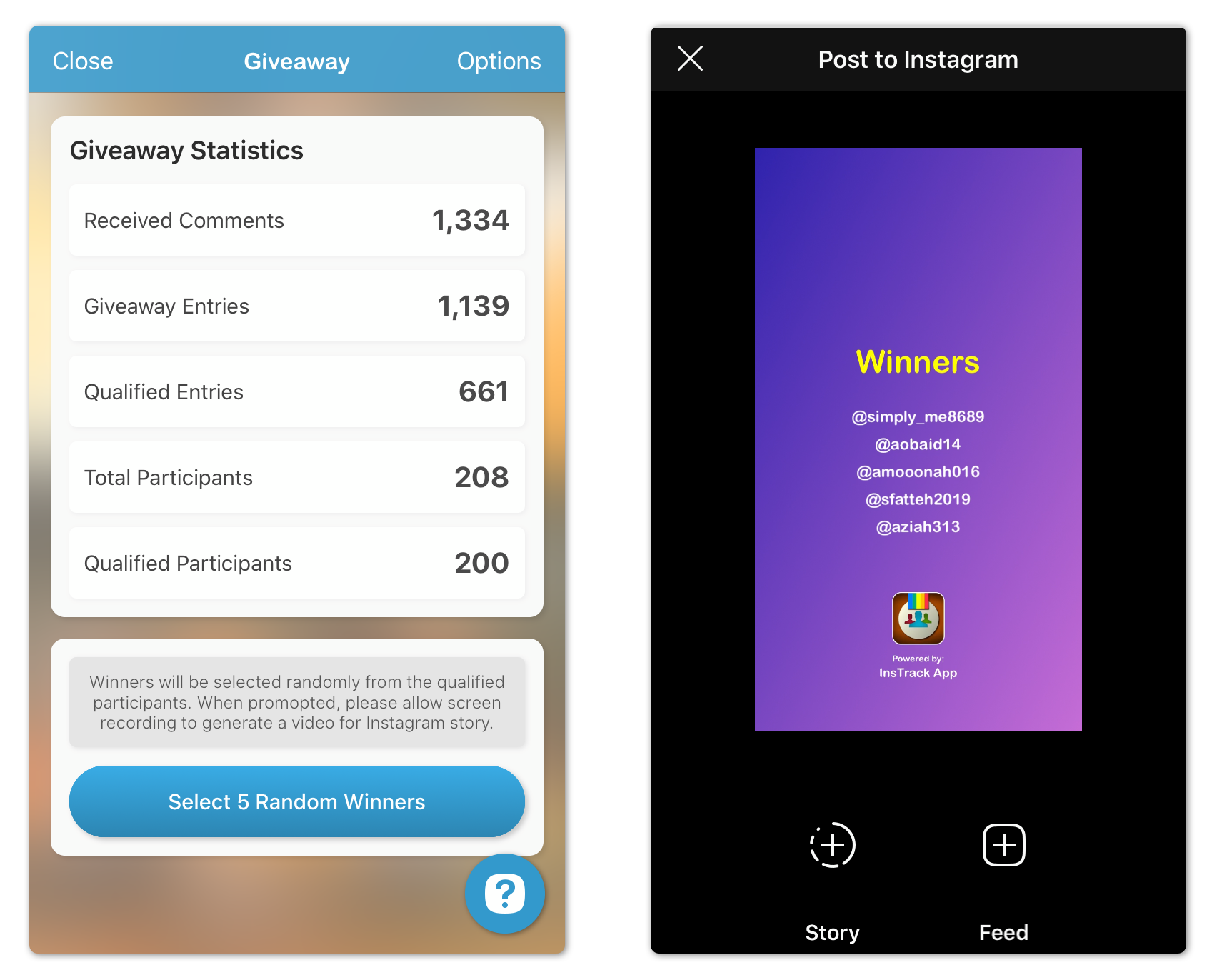
Step 4: Winner Selection Animation
Tap on the Select x Random Winner(s) button at the bottom of the Giveaway Statistics screen. You'll be asked if you want to screen record the process of winners selection with and without microphone. You should allow screen recording to document the process for your audience. Animation will show different participant names and finally winner name(s) will be randomly picked and displayed on the screen.
NOTE: Winner names will be copied for easy pasting later on an Instagram story or feed post.
Step 5: Selection Video Preview
After the animation is done, you'll be able to preview selection animation video. Tap on the Save button on the top right of Preview screen to save video to your Photos Album.
Step 6: Post Video to Instagram
After saving animation video, you'll be asked to post it directly to Instagram. You can either post it immediately or post it later. If you decide to post it immediately, you'll be able to post it to either your story your feed.
Giveaway Statistics
This screen shows all information you need to know about the giveaway performance. It contains the following 5 sections where tapping any section shows all related details:
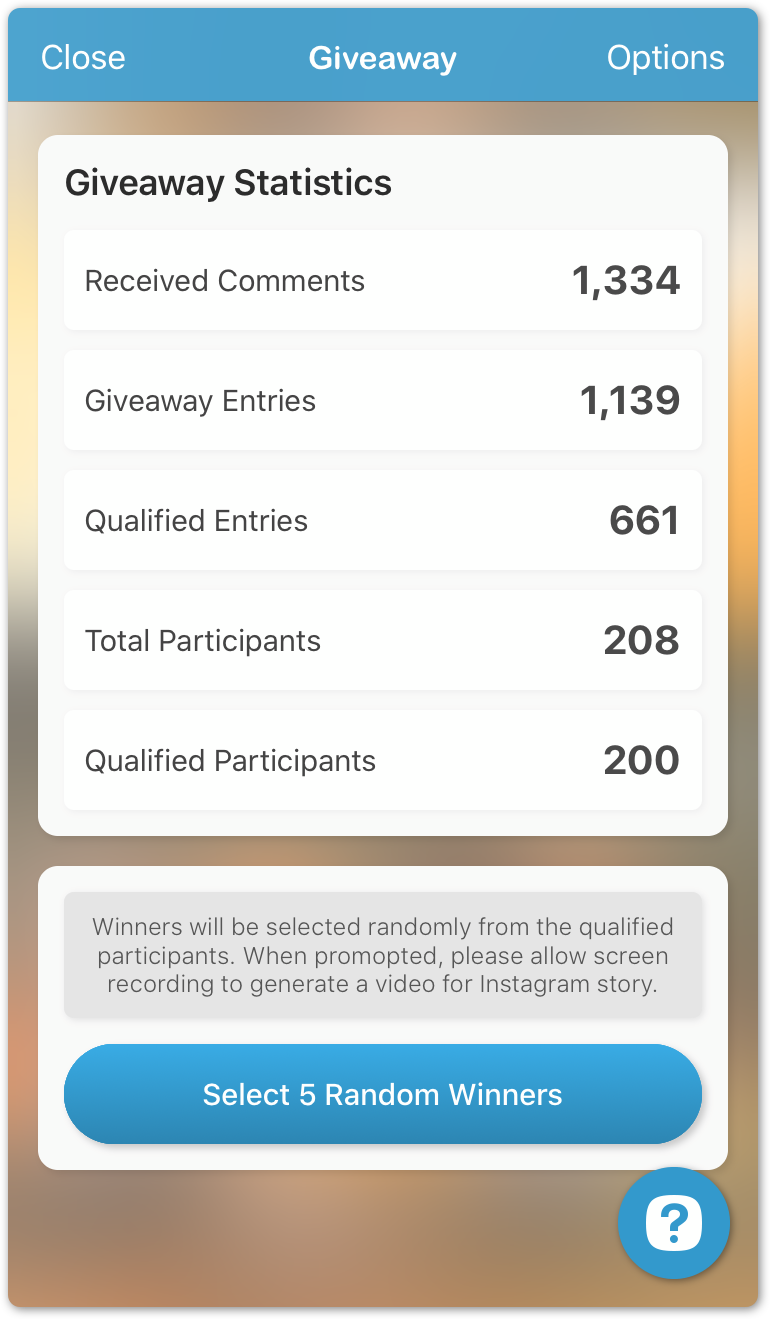
1. Received Comments
This section shows the number of comments received for giveaway post.
2. Giveaway Entries
This section show the number of comments that have been posted as giveaway entries. Replies and your own comments are not shown here.
3. Qualified Entries
This section shows the number of giveaway entries that have met all rules set in the Giveaway Options.
4. Total Participants
This section shows the number of all users that have posted giveaway entries.
5. Qualified Participants
This section shows only the number of users that have posted Qualified Giveaway Entries.
Giveaway Options
This section allows for defining giveaway rules and the number of winners. The following options are available.
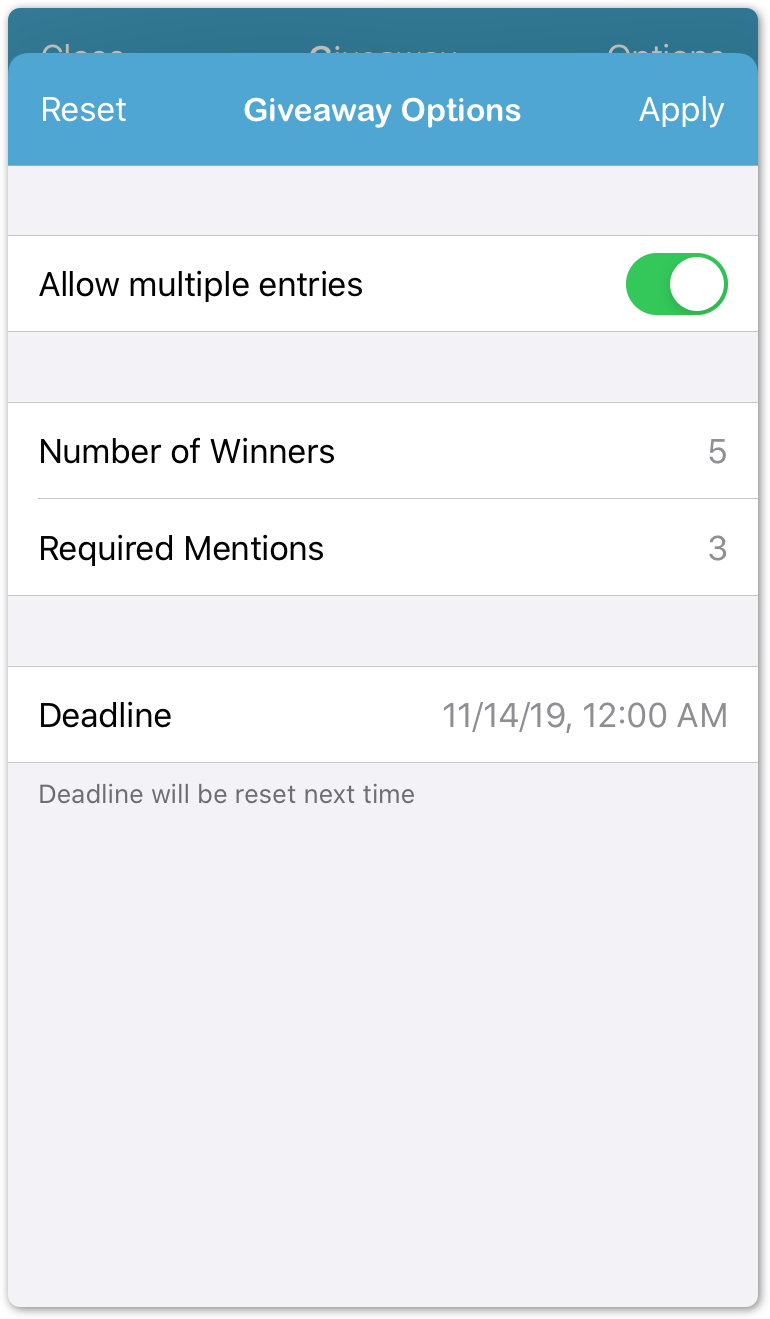
1. Allow multiple entries
This option determines whether or not multiple giveaway entries are allowed. It's enable by default to give participants more chances of winning with multiple entries. This option is saved.
2. Number of Winners
This option determines the number of winners that'll be selected randomly from the list of Qualified Participants. The default value is 1. This option is saved.
3. Required Mentions
This options determine the minimum number of required mentions in each giveaway entry. Entries that fail to meet this rule will be disqualified. The default value is 1. This option is saved.
4. Deadline
This options determine the giveaway participation deadline. Any entries that are posted after this deadline will be disqualified. The default value is current time. This option is reset to the default time every time the Giveaway section is accessed, so it's important to set it before random winner selection.
Giveaway Entries Status
Accessing Giveaway Entries sections allows for seeing the status of each entry. The following status es are available:
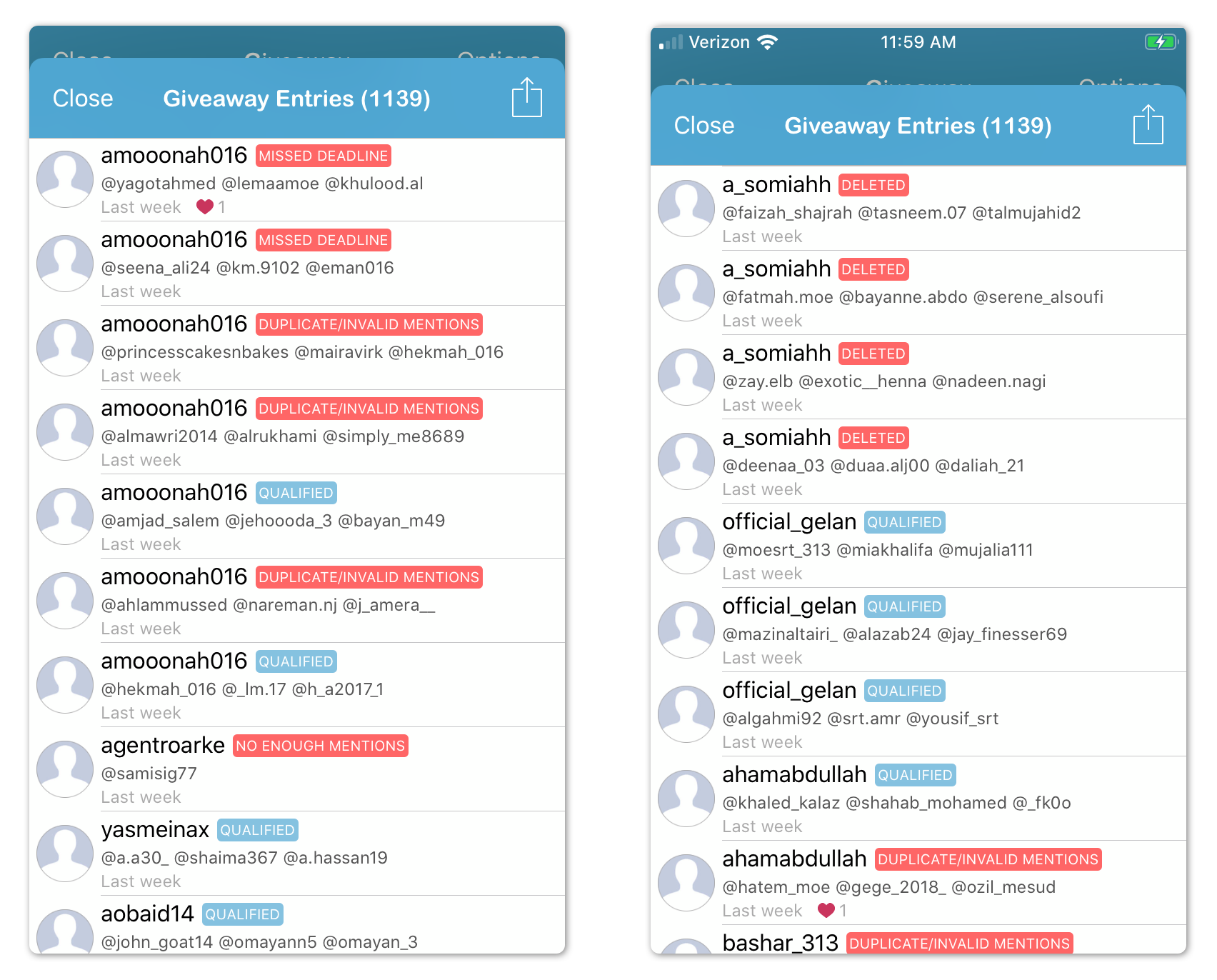
Qualified
This status indicate the the giveaway entry has met all rules set in the Giveaway Options. This status is shown when multiple entries are allowed.
First Qualified
This status indicate the the giveaway entry has met all rules set in the Giveaway Options. This state is only shown when multiple entries are not allowed.
Disqualified: Multiple Entries
This status indicates that the giveaway entry is being disqualified since participant already has a qualified entry. This state is only shown when multiple entries are not allowed.
Disqualified: Missed Deadline
This status indicates that the giveaway entry is being disqualified since it was posted after giveaway deadline.
Disqualified: Duplicate/Invalid Mentions
This status indicates that the giveaway entry is being disqualified since it has either a duplicate or an invalid mention. Duplicate mention indicate that a mention has been used before in another qualified entry. An invalid mention indicate that participant either mentioned himself/herself or mentioned your account.
Disqualified: Repeated Mentions
This status indicates that the giveaway entry is being disqualified since it has repeated mentions and the number of unique mentions doesn't meet the number of required mentions.
Disqualified: No Enough Mentions
This status indicates that the giveaway entry is being disqualified since it doesn't meet the number of required mentions.
Disqualified: No Mentions
This status indicates that the giveaway entry is being disqualified since it doesn't have any mentions while the number of required mentions is great than 0.
Disqualified: Empty Comment
This status indicate that the giveaway entry has been disqualified since it is doesn't have text.
Disqualified: Deleted
This status indicate that the giveaway entry has been disqualified because it has been deleted by the participant or you.
Disqualified: Hidden
This status indicate that the giveaway entry has been disqualified because you hided it due to some violations or other reasons you decided.
Giveaway Participants Status
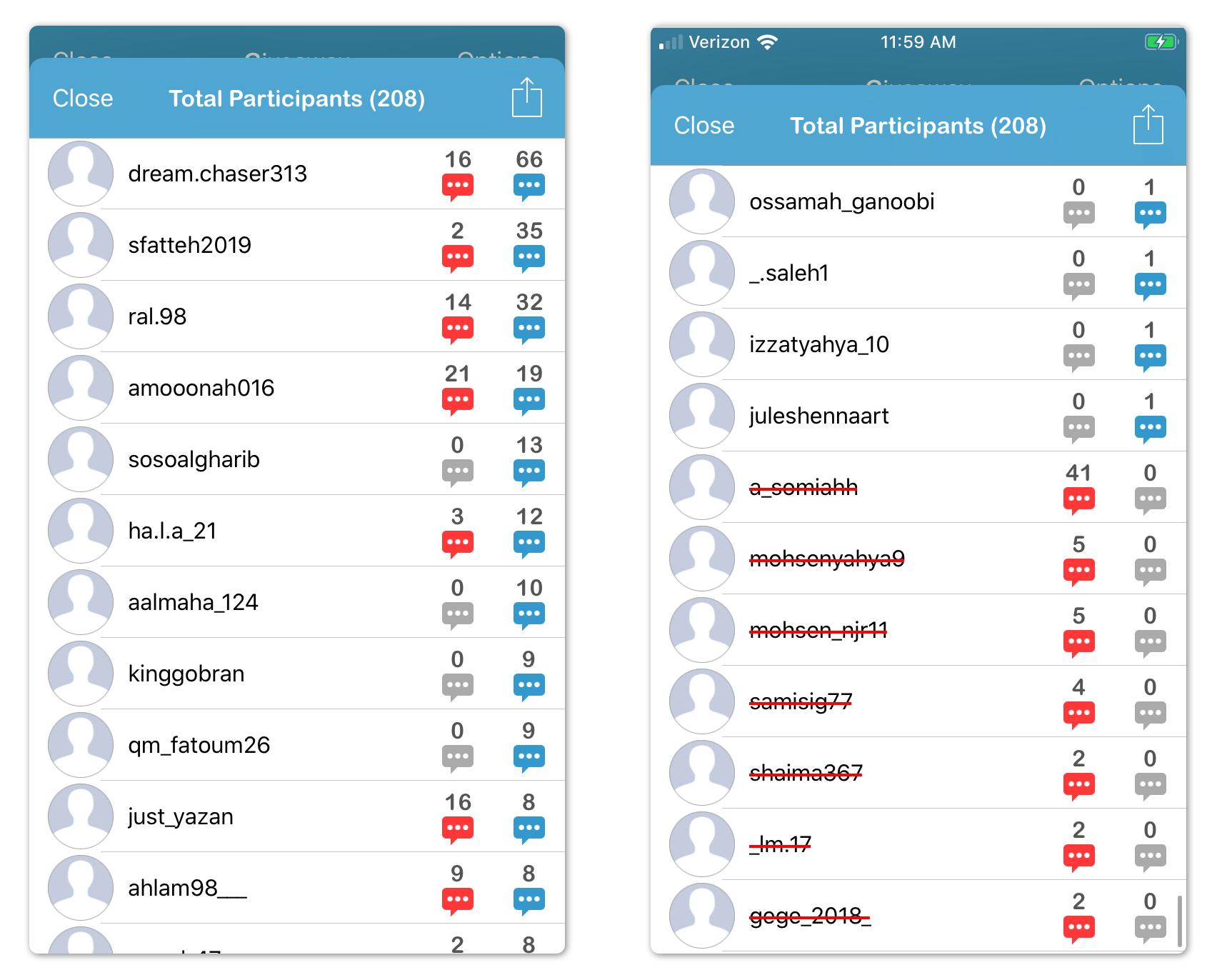
Accessing Giveaway Participants sections allows for seeing the status of each particpant. The number of Qualified Entries is shown in blue while the number of disqualified entries is shown in red. Disqualified participant are shown at the bottom of the list and those are participants with no qualified entries.
Tapping on any participants allows for the following options:
- Opening user profile on Instagram
- Showing all media commented on by user
- Showing all comments received by user (This requires access to Engagement Analysis section)
Exporting Giveaway Data
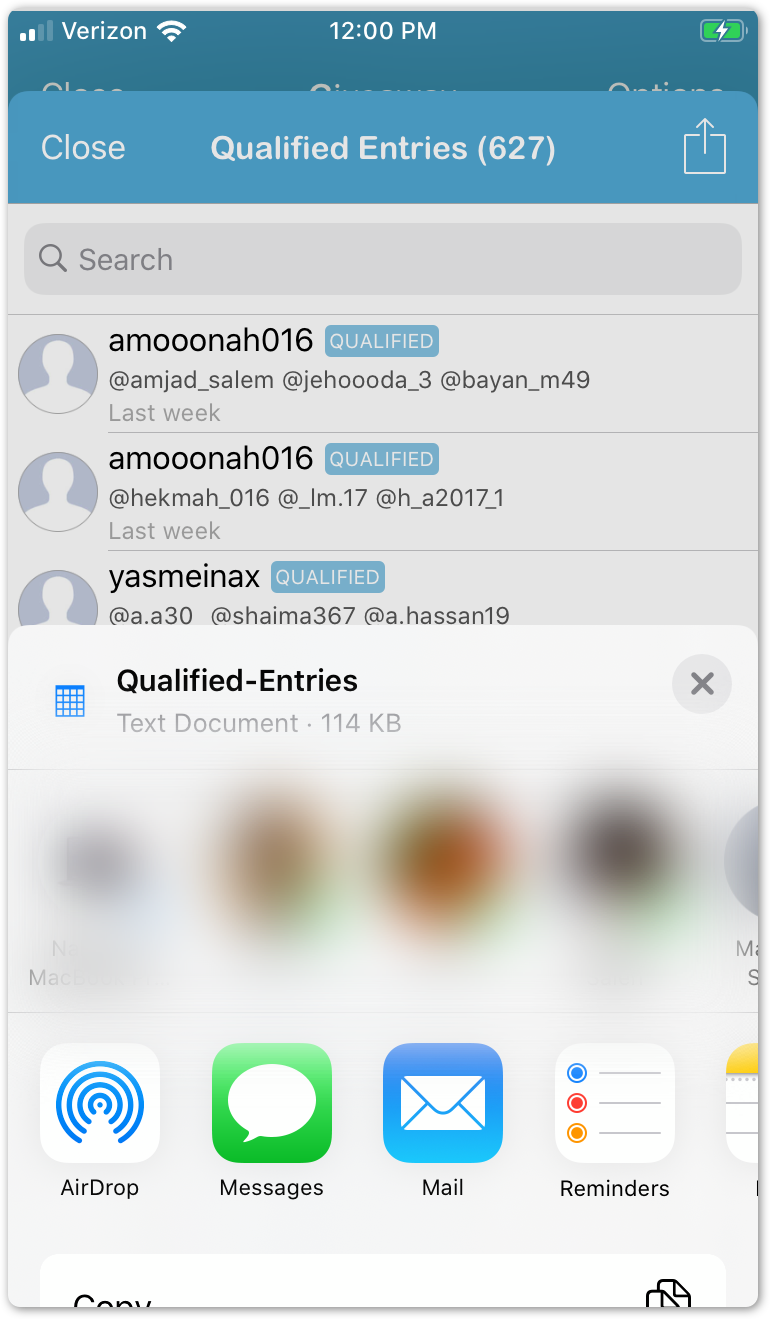
Giveaway data can be exported as CSV file using the share button on the top right of Giveaway or Participants sections.
Giveaway Tips
1. Please make sure you follow Instagram Promotion Guidelines which can be found here.
2. You can monitor Giveaway Participants Status during the giveaway period by accessing the Total Participants list. At the bottom that list you can see users that have been disqualified due to not meeting giveaway rules. You can tap on those participant to access their Instagram accounts and inform them about the rules to give them a chance for winning.
3. When running a giveaway with multiple entries allowed, you can periodically post screenshots of the Total Participants list as stories. This encourages more participation.
4. After random selecting the winners, their names will be copied so they can be easily pasted on a story or post caption.
5. If you want select winners using Random Number Generator or List Randomizer, you can export list of Qualified Entries as CSV file.
NOTE: This section is only available for Instagram business accounts with Facebook login. Loading all post comments is only available with Facebook login. Learn more here.
Required Subscription
This section requires no subscription as it's FREE.
Comments
0 comments
Please sign in to leave a comment.